
1. Add and inspect
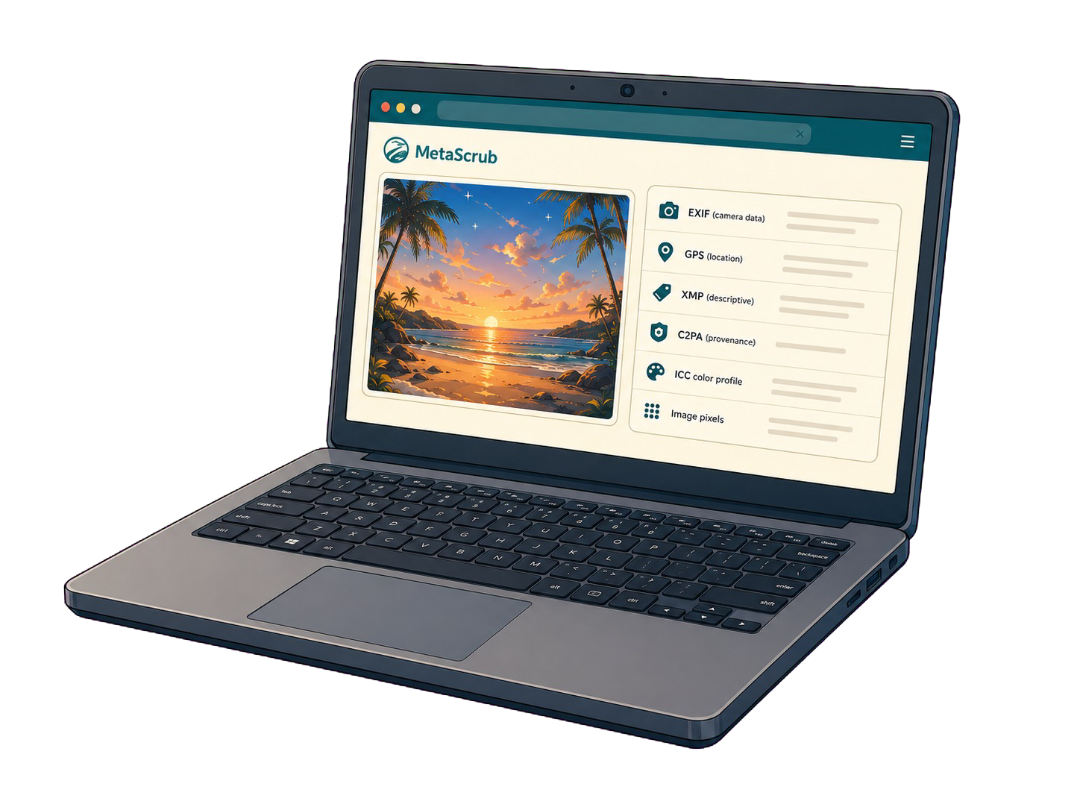
Choose a JPEG, PNG, or WebP image and wait for the detected metadata list.
Step-by-step browser guide
Use an inspection-first workflow: add the image, identify the metadata blocks, choose the appropriate scope, clean locally, and verify the new copy.
Choose imagesor drop JPEG, PNG, or WebP files here
Clean 5 images free per day. Files stay on this device.
Built around the result you need
The browser workbench handles the technical parsing and presents a clear result for each supported image.
Choose a JPEG, PNG, or WebP image and wait for the detected metadata list.
Pick AI provenance only for narrow cleanup or Privacy clean for broad supported removal.
Review what changed, then save the new copy while leaving the original untouched.
Inspect before you remove
The right mode depends on whether ordinary photo metadata should remain in the output.
Inside a supported image
Each layer serves a different purpose, so the cleaner reports it separately.
Camera, capture, device, time, and location details.

Captions, credits, rights, keywords, edits, and software fields.

Recognized C2PA/JUMBF provenance records and assertions.
Color profile and visual image data stay when possible.
Honest product boundaries
Clear answers before you clean
Use the free browser workbench on this page. It processes up to five supported still images per day locally.
Choose AI provenance only. That mode keeps EXIF, including GPS, while removing recognized provenance and AI-tagged metadata.
Add a batch, review each file, choose one cleaning mode, then download individual results or a ZIP.
MetaScrub cannot do that because it supports still images only. Use a video-specific metadata tool and verify its output separately.
Private by design
Inspect first. Clean only what you choose. Download a verified copy.
Choose images